
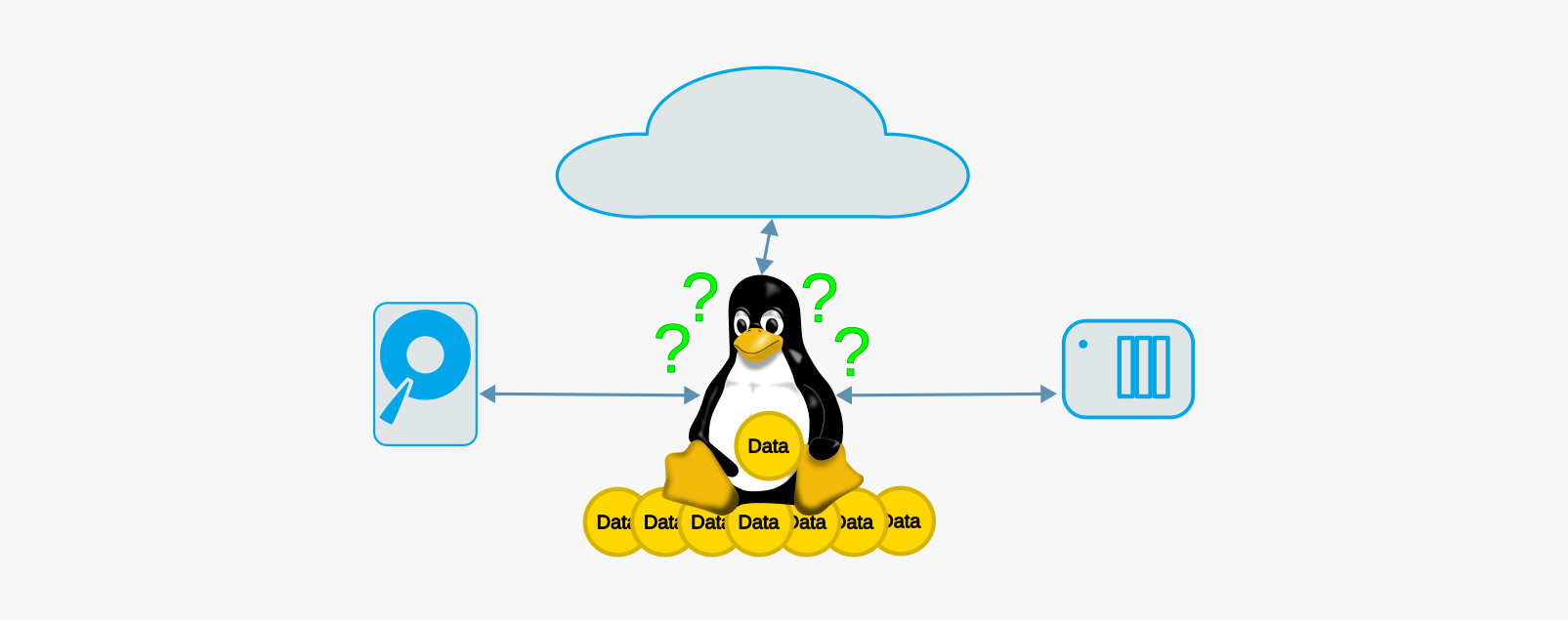
At the end of the last article in this series, I already made a first suggestion and thought that my idea at the time was a really good topic, as it is too rarely mentioned. In this article, we will look at some possible backup solutions for Linux. After all, nothing is worse than when data is irretrievably deleted even though you still need it. And it’s important to remember that nowadays, ransomware unfortunately exposes us to significantly more dangers than in the past, when the most common causes were hardware failures, software problems, or our own stupidity 😉
During my apprenticeship, one of the first sayings I heard on the subject of backups was: “No backup? No sympathy!” As harsh as this saying may sound at first, especially if you have just suffered data loss, it still contains a grain of truth: data loss is a problem that can usually be prevented.
Before we really get started, here is the usual overview of all the articles in this series published so far:
- Linux? What the penguin!?
- Basic installation of the Linux distribution
- Installation of native Linux software
- Installing Windows software on Linux
- Gaming on Linux
- Unreal Engine on Linux
- Feasible backup solutions under Linux
Fundamentals
Let’s start with a few general points before we discuss specific solutions. In general, I will focus here on possible solutions that are more suitable for private individuals than for companies / the professional sector.
Backup storage
The right backup storage for home users really depends on how much storage you need. If you’ve got big libraries (music, movies, SFX, gaming assets, textures, photos, etc.) that you want to back up, you’ll obviously need more storage space than if you’re more into digital minimalism. In general, however, it can be said that the faster and larger the storage media, the more expensive they are. This is why hard drives are still popular today, as they often cost only a fraction of the price of an SSD of the same size per TB.
However, a single hard drive, whether internal or external, also carries a risk of failure, which can be compensated for, for example, by suitable RAID arrays. As an external solution, this is typically achieved with suitable NAS solutions, which then exist as small, independent devices on the network and nowadays offer much more than “just” storage space. If you decide to use a NAS, you should still remember that the contents of a NAS system should also be backed up accordingly.
Another option that offers virtually unlimited storage space is cloud storage. However, it is advisable to be cautious with such offers and to ensure that you can encrypt the data yourself, for example with Cryptomator.
In general, you should ensure that every backup medium is securely encrypted. It doesn’t matter whether it’s a hard drive, a NAS, or cloud storage. It also shouldn’t matter whether you have something to hide or not. On the one hand, such data is nobody else’s business, and on the other hand, you may have backed up data that you are not allowed to pass on because, for example, you do not have the license to pass on certain assets. It is also important to remember that deleted files can sometimes be recovered. If you want to prevent such cases, encrypting the backup medium is the easiest option. How exactly this works depends, of course, on the specific medium:
- For external hdds, dm-crypt with LUKS is suitable, for example.
- NAS systems usually offer this directly via the web interface
- Cloud storage can be securely encrypted using, for example, the aforementioned Cryptomator
Backup strategies
There are a few strategies that you encounter from time to time in practice. I have selected two of them.
- 3-2-1 rule
- 3 copies of the data on 2 different types of media, with 1 copy stored elsewhere. This “elsewhere” can be achieved by using either cloud storage or an external hdd that is stored in a different location, e.g., with friends, family, or in the office.
- Grandfather-father-son (generation principle)
- This is a rotating system in which the “son” medium is backed up daily, the “father” medium weekly, and the “grandfather” medium monthly. The data on the respective media is overwritten each time. By changing the respective son / father / grandfather intervals, you can directly influence the potential data loss.
Regardless of your backup strategy, it is not enough to simply set up backups and leave them running. Instead, you should also regularly check that the backups can be restored. Fortunately, this is very easy with the file-based backup solutions we are about to look at, as you can open a few of the backed-up files on a trial basis to ensure that the backup was successful. Other backup solutions sometimes use their own formats, so restoring files is a separate step that should be tested.
The simplest but slowest solution
The simplest solution is to manually copy all relevant data, such as your home directory, to the backup medium of your choice. As simple as this solution may sound at first, it does have disadvantages that you should be aware of:
- As soon as you repeat the process and overwrite all files that have already been backed up—after all, you want to back up any changes as well—all files are usually copied again, even though they have not changed at all. This means that the backup takes the same amount of time each time.
- If you have deleted files that were previously backed up, they are still backed up in the backup.
- There is no way to back up specific points in time unless you back them up to a different folder, which then costs twice the storage space.
A simple and fast solution
If you want to eliminate the first two criticisms of simply copying the previous solution, sooner or later you will come across rsync. rsync is an ingenious program for synchronizing files and folders, which was released back in 1996. The great thing about rsync is that it doesn’t just copy entire files, but divides files into blocks and only copies the blocks that have changed. This means that only the data that has changed is copied.
In general, rsync offers a wide range of options, so it’s definitely worth taking a look at man rsync. With the right parameters, e.g., -avLHp --progress --delete (have fun decrypting the parameters 😉), rsync is very well suited as the basis for your own backup concept.
If setting up a reusable shell script with rsync with the desired options is too much effort for you, then you might want to take a look at rdiff-backup. It uses the same algorithm as rsync and is designed specifically for creating backups. This also makes it possible to use advanced features such as incremental backups. The practical thing about this is that the changes are stored as reverse deltas. This means that the latest version of a file or folder is always available and the changes from the previous state are stored separately. This allows you to restore the last backed up version by simply copying it, rather than having to first restore the last full backup and then apply the incremental backups, as is usually the case.
The most convenient solution
Last but not least, let’s move on to what I consider to be the most convenient backup solution for private users that I have encountered in the Linux world so far. It is called Back In Time and focuses on user convenience. The idea is to provide backups as snapshots of specific points in time, a bit like Apple’s Time Machine for macOS. So, in the backup, you get a folder hierarchy that has a separate subfolder for each point in time when a backup took place (snapshot), in which you then have all the folders and files from the backups available. If you were to do this manually, it would be a huge waste of space, as you would have a bunch of duplicate files that haven’t changed between backups, but Back In Time is smarter than that, as all files that haven’t changed are created as so-called hard links. Hard links are links at the file system level, so files can exist in multiple locations without taking up duplicate storage space. Unlike symbolic links or shortcuts, as they are called in the Windows world, the link is created directly on the file system, so hard links continue to work even if the original file has been moved or deleted.
Another advantage of this solution for those who dislike terminals is that Back In Time even has its own GUI. Therefore, you don’t need to use the terminal or search for third-party GUIs.
Conclusion & Outlook
I hope that you no longer need to worry about potential data loss and have discovered a solution that meets your personal requirements.
This is now the seventh and, for the time being, last article in this series. In my opinion, we have covered the most important topics in the various articles. Of course, there are many other topics, and I don’t want to rule out the possibility of publishing more articles on Linux in the future, but for the foreseeable future, the articles will once again focus more on topics in the field of technical art.